A Creator's Guide to Copy and Paste Special Characters
Unlock any symbol on any device. This guide shows you how to copy and paste special characters on Windows, Mac, iOS, and Android to make your content stand out.
Plain text gets the job done, but it can feel a little… flat. Learning how to copy and paste special characters is the easiest way to give your digital content some personality and visual punch. From a unique social media bio to a brand name that actually sticks, these symbols make your text stand out.
Why Special Characters Are a Creator's Secret Weapon
Let's be real: symbols are everywhere. A simple arrow (→) clarifies a call to action, while a star (★) snags your attention and highlights a key feature. For digital creators, these aren't just little decorations; they're powerful communication tools.
They break up monotonous blocks of text, add a layer of emotion, and guide the reader's eye, making your content way more engaging and scannable. You probably already do this without thinking, like adding a checkmark (✓) to a to-do list or a heart symbol (♥) in a friendly message. Expanding that toolkit is how you start crafting more effective content.
From Simple Symbols to a Global Standard
The ability to use such a massive library of symbols is actually a pretty recent thing. Early systems like ASCII were incredibly limited, but then Unicode came along and changed everything.
Since its introduction in the late 1980s, character encoding has evolved dramatically. While ASCII could only handle about 128 characters, Unicode version 17.0 now supports a staggering 297,334 assigned characters. That covers 172 scripts and more symbols than you could ever imagine. If you want to dive deeper into the technical side, dispatchintegration.com has a great breakdown of character encoding.
This massive expansion is exactly why you can now copy and paste symbols from nearly any language or symbol set into your work.
The right symbol can transform a boring headline into something captivating. It’s a small change that makes a huge difference in how people perceive your message.
Unlocking Your Creative Potential
This guide is built to give you the power to find and use any symbol you can think of, no matter what device you're on. We'll walk through the go-to methods for every major platform and even show you some workflows that will save you a ton of time.
And for creators who just need the fastest solution possible, tools like MakerSilo offer a one-click library that makes finding the perfect character completely effortless.
Mastering Special Characters on Your Desktop
Hunting for the right symbol on your computer can feel like a chore, but both Windows and macOS have powerful, built-in tools that most people completely overlook. Moving beyond basic text doesn't have to involve endless searching. These native features put thousands of characters right at your fingertips.
For creators, the ability to quickly add a special character can transform flat text into something far more expressive and engaging.
This simple flowchart shows how a single special character can elevate your text.
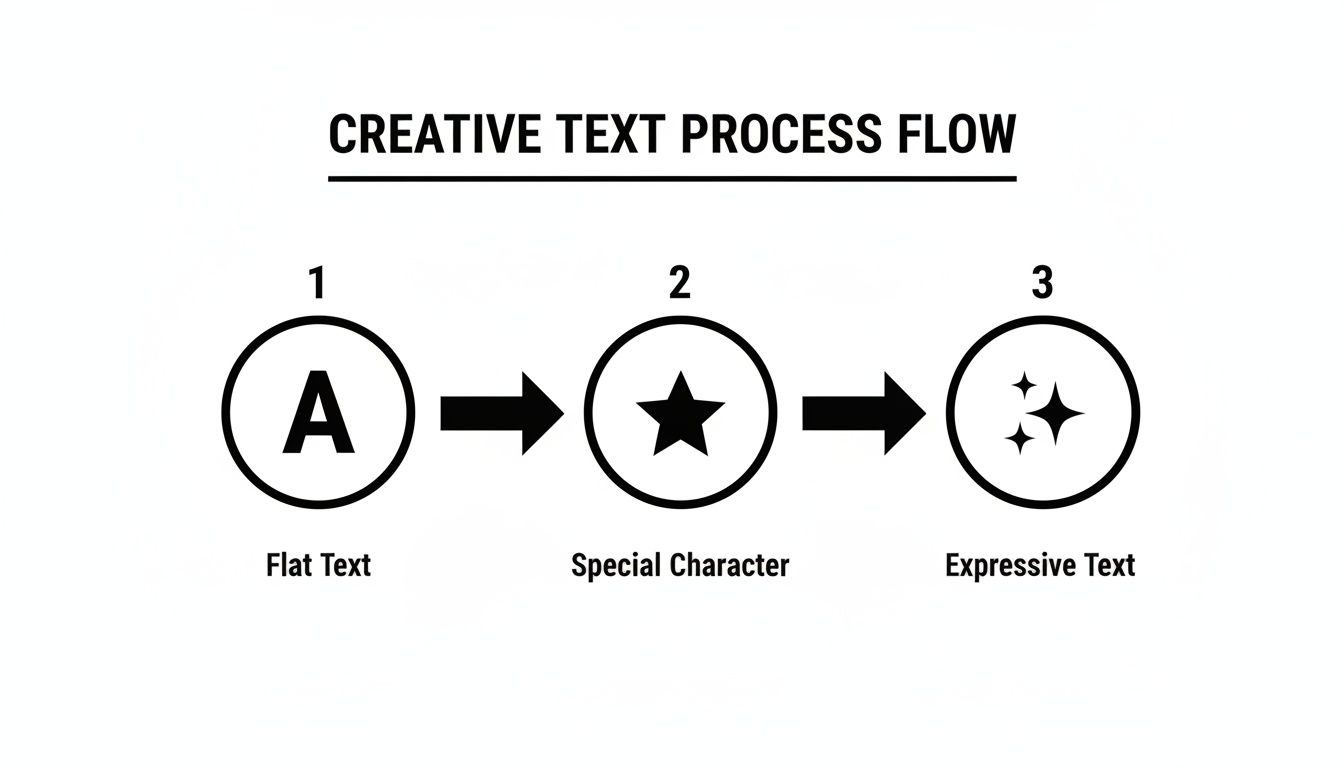
The visualization highlights a key creative process: starting with plain text, injecting a symbol for emphasis or style, and ending with more dynamic, expressive content.
Your Go-To Tools on Windows
Windows offers a couple of surprisingly versatile ways to copy and paste special characters. The first is the classic Character Map. You can find it by searching for "Character Map" in your Start Menu. It’s a bit old-school, but it gives you access to every character available in a given font. Simply find your symbol, select it, copy it, and paste it where you need it.
A much faster and more modern method is the emoji keyboard. Press Win + . (the period key), and a panel will pop up with emojis, kaomoji, and a comprehensive symbol library. You can browse categories like currency (€), math (≠), and geometric shapes (◆) to find exactly what you need.
The Mac Character Viewer
Mac users have a similarly slick tool called the Character Viewer. The easiest way to open it is with the keyboard shortcut: Control + Command + Spacebar. This brings up a searchable window where you can find everything from pictographs and bullets to technical symbols and arrows (→).
Once you find the character you want, you can either double-click it to insert it directly or drag it into your document. It’s an incredibly efficient way to find and use symbols without ever leaving your keyboard.
My personal workflow involves adding frequently used symbols to the "Favorites" section in the Character Viewer. This creates a custom palette of characters I use all the time, like ™, ©, and →, saving me from searching for them repeatedly.
Reviving the Classic Alt Code Method
For Windows power users, Alt codes are still a relevant and fast way to type specific symbols. This method requires a keyboard with a numeric keypad—the block of number keys on the right side, not the row along the top.
To use an Alt code, you simply hold down the Alt key and type the corresponding number sequence on the numeric keypad. When you release the Alt key, the symbol appears. For example, holding Alt and typing 0169 creates the copyright symbol: ©. It’s a direct way to bypass menus and get straight to the character.
I've put together a quick-reference table for some of the most popular symbols you can type using Alt codes.
Common Alt Codes for Windows Users
| Symbol | Name | Alt Code |
|---|---|---|
| — | Em Dash | Alt+0151 |
| – | En Dash | Alt+0150 |
| ™ | Trademark | Alt+0153 |
| © | Copyright | Alt+0169 |
| ® | Registered | Alt+0174 |
| ° | Degree | Alt+0176 |
| • | Bullet | Alt+0149 |
| ± | Plus-Minus | Alt+0177 |
Mastering just a few of these codes for symbols you use often can make a noticeable difference in your daily workflow, letting you insert them without breaking your typing rhythm.
Finding Symbols When You're on the Go
As a creator, your work isn't confined to a desk. Inspiration strikes everywhere, and you need tools that keep up, whether you're drafting an Instagram story on the train or sending a quick client update from a coffee shop. Fortunately, your smartphone is already equipped with powerful, hidden ways to copy and paste special characters.
You don't need a separate app to find accented letters or unique symbols. Both iOS and Android keyboards have these features built right in, designed for speed and convenience once you know where to look.
Unlocking Hidden Characters on iOS
The iPhone keyboard keeps things clean and simple, but a whole world of symbols lies just beneath the surface. The secret is the long-press gesture.
By tapping and holding almost any key, you reveal a pop-up menu with related characters. For instance, holding the "E" key brings up options like è, é, ê, and ë. This works for most letters, but it’s not just for accents.
- Currency Symbols: Long-press the dollar sign ($) to find symbols like the euro (€), yen (¥), and pound (£).
- Punctuation Variants: Holding the hyphen (-) reveals an em dash (—) and en dash (–), while the period key gives you an ellipsis (…).
- Degree Symbol: To type the degree symbol (°), just press and hold the zero (0) key.
This intuitive system makes it easy to find common symbols without ever switching keyboards. You can quickly add a professional touch to your text, whether you’re typing "résumé" or "25°C".
Navigating Symbol Layers on Android
Android keyboards, like Google's Gboard, organize special characters into different layers. While the layout might vary slightly depending on your phone's manufacturer, the core concept is the same.
You start by tapping the ?123 key to switch to the numeric and primary symbol layout. From there, another tap on the =\< key will reveal a second layer filled with more obscure and specialized characters. This is where you’ll find things like bullets (•), daggers (†), and various arrows (←, →).
I’ve found the long-press trick works on Android, too, often revealing even more options than what’s immediately visible. For example, long-pressing the period key on Gboard can show a whole array of symbols, from the ampersand (&) to the plus sign (+). Experiment with different keys to see what they hide.
For those looking to add more personality, mobile keyboards also grant easy access to expressive characters like those found in kaomoji. You can learn more about these fun Japanese emoticons and grab some for your next post by exploring a comprehensive kaomoji list online.
Mastering your mobile keyboard’s hidden features is a small skill that pays off big, making your content creation process faster and your final text far more expressive.
The Best Way to Copy and Paste Any Symbol Instantly
Let's be honest: while the built-in character maps on your computer or phone get the job done for the occasional symbol, they feel clunky. Digging through menus or trying to recall an obscure Alt code completely kills your creative momentum.
This is where dedicated web-based symbol libraries come in. They're built for one purpose: to help you find and copy and paste special characters as quickly as humanly possible. Instead of being buried in your operating system, they offer a clean, searchable interface that native utilities just can't compete with.
Upgrade Your Workflow with a Symbol Library
Think of a good symbol library as a supercharged, creator-focused version of your computer's Character Map. It ditches the dense, overwhelming grid of every character under the sun and instead organizes symbols into logical, real-world categories.
For instance, finding exactly what you need is incredibly straightforward.
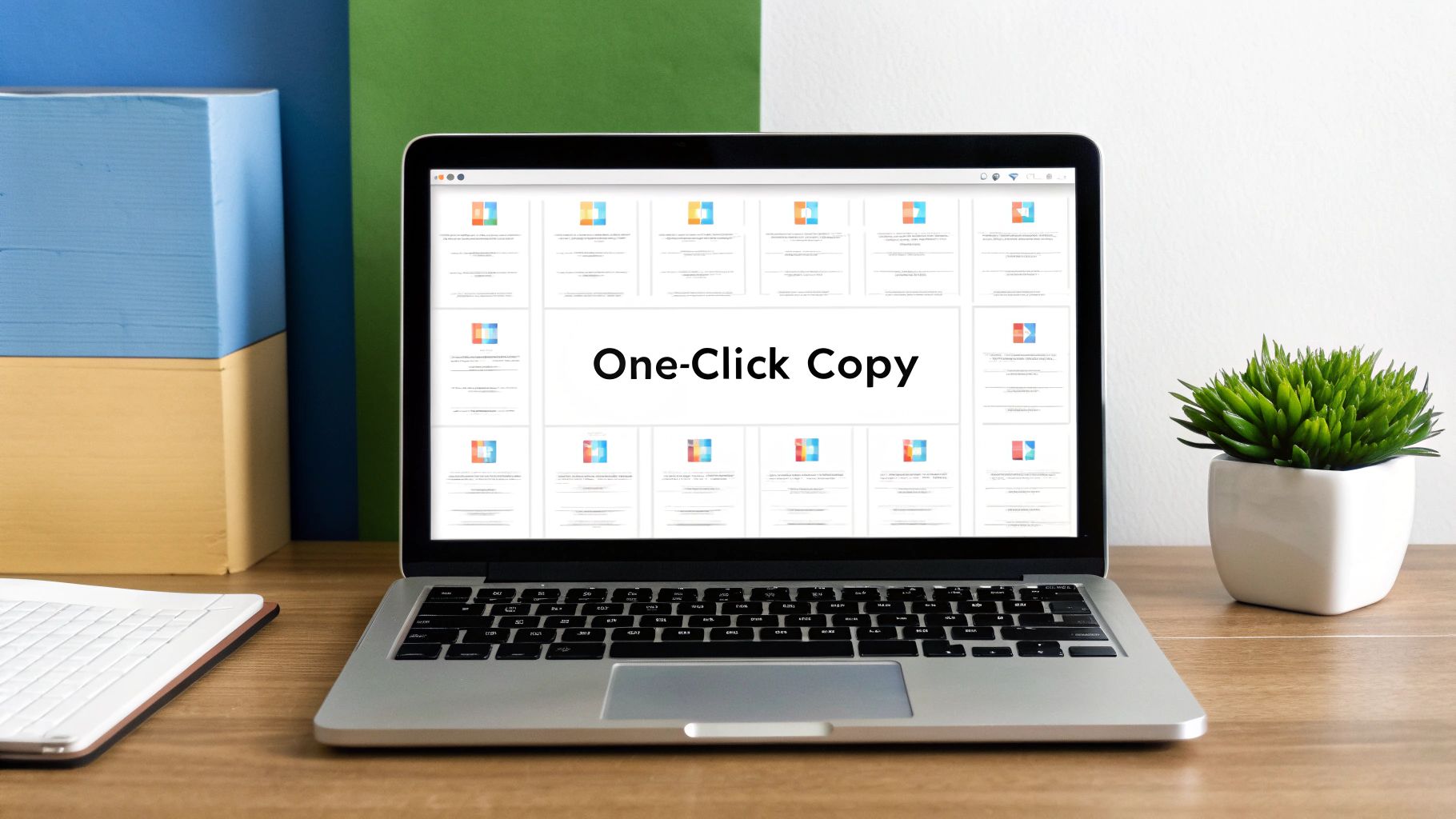
The layout is clean, with symbols grouped into intuitive categories, a search bar, and—most importantly—a one-click copy function. This whole approach takes the guesswork out of the process, letting you grab the perfect symbol in seconds.
The biggest advantage here is the one-click copy system. You find the symbol, you click it, and it’s instantly on your clipboard. No highlighting, no right-clicking, no keyboard gymnastics. Just one click.
This simple change is a massive workflow improvement. When I'm drafting social media captions, I keep a symbol library open in another tab. Grabbing a star (★), an arrow (→), or a fancy divider (⎯⎯ ୨˚̣̣̣͙୧ ⎯⎯) takes less than a second, so I never lose my train of thought.
Go Beyond the Standard Characters
Another huge benefit is the sheer variety. Native tools are great for standard Unicode characters, but web libraries curate symbols specifically for creative and marketing needs. This is where you find collections that go far beyond basic punctuation.
You can instantly find and copy things like:
- Aesthetic Dividers: Perfect for breaking up long captions on Instagram or formatting a bio.
- Expressive Kaomoji: Add personality with complex emoticons like
(´。• ω •。) without building them from scratch. - Arrows and Brackets: A huge range of styles for lists, call-outs, and visual guides.
- Stars and Sparkles: Grab decorative elements to make your text pop.
Using a tool like MakerSilo basically unlocks a much wider creative palette. You can explore a vast, searchable symbol library to find everything from music notes to currency symbols, all organized with creators in mind.
Ultimately, it’s about efficiency—spending more time creating and less time hunting. It’s about working smarter, not harder.
Using Special Characters with Purpose and Style
Knowing how to copy and paste special characters is one thing; knowing when and why is another skill entirely. In the wrong hands, symbols can do more harm than good, muddying your message instead of making it pop. The real key is using them with intention, making sure they add a little something extra without creating barriers for your audience.
In the world of social media, special characters have become go-to tools for adding personality. But there’s a catch: they can seriously impact readability and accessibility. Research has shown that while common symbols like ‘@’ and ‘&’ are easily recognized by screen readers, a lot of decorative or “fancy” text can completely trip up assistive technologies. This is a big deal, and it's why we need to be thoughtful about how we use them. For a deeper dive, check out the insights on maintaining an inclusive online presence at business.scope.org.uk.
Balancing Style with Clarity
The goal is always to enhance your content, not hide it behind a wall of confusing symbols. When you overuse decorative fonts or replace entire words with stylized characters, you make your message tough for everyone to read—and nearly impossible for people who use screen readers.
For example, an accessibility tool might read out "ⓦⓔⓛⓒⓞⓜⓔ" as a jumble of unrelated symbols, completely missing the word "welcome."
Instead of going overboard, think about using symbols to:
- Emphasize key points: A simple star (★) or checkmark (✓) is often all you need to draw the eye.
- Structure your content: Use arrows (→) or classic bullets (•) to guide readers through lists or steps.
- Add a touch of personality: A single, well-placed symbol in a bio or caption adds flair without tanking readability.
Treat symbols like punctuation—a little goes a long way. They should support your words, not fight them. For more on creating stylized text that still works, our guide on the italics generator covers some great best practices.
Avoiding the Dreaded Tofu Box
Ever seen a post littered with little empty squares (□)? That’s what we informally call “tofu,” and it’s what happens when a device or browser doesn’t have the right font to display a character you used. It’s a dead giveaway that your cool, creative symbol didn't make it to your audience.
This is a common problem with newer or more obscure Unicode characters. That awesome new symbol might look perfect on your phone, but it could just be a blank box for a huge chunk of your readers.
To make sure your content looks great everywhere, stick to widely supported symbols. Your safest bet is to prioritize characters from older, more established Unicode blocks. These have near-universal compatibility across modern devices and platforms.
A good rule of thumb is to test how your content looks on different devices if you can. Even more practically, using a curated symbol library usually helps, since they tend to stick with characters known for broad support. It’s a simple step that ensures your message arrives just as you intended, for every single person.
Frequently Asked Questions
When you're working with special characters, a few questions tend to pop up again and again. It’s totally normal to run into a snag, whether it’s a symbol not showing up right or a question about how they affect your social media posts. Let’s clear up some of the most common points of confusion so you can get back to creating.
We'll skip the dense technical explanations and give you the practical answers you actually need.
Why Do My Special Characters Sometimes Show Up as Squares?
Ah, the dreaded little empty square (□). Often called "tofu," this is what you see when a device or app is trying to display a character it doesn't recognize. Think of it as a digital question mark—the font being used doesn't include the specific symbol you picked.
This happens most often with newer or more obscure Unicode characters that haven't made their way into every font library yet. So, while a symbol might look fantastic on your screen, a chunk of your audience using different devices or operating systems might just see a blank box.
The easiest way to dodge this is to stick with more common, widely supported symbols when you’re creating content for a broad audience. Using a curated library that prioritizes characters with wide compatibility is one of the most reliable ways to make sure your message lands exactly as you intended.
Can Using Too Many Symbols Hurt My Social Media Reach?
Yes, it absolutely can. While a few well-placed symbols can make your content pop, going overboard with decorative fonts and characters in your username, bio, or key posts can definitely backfire. Search algorithms on platforms like Instagram or X (formerly Twitter) can struggle to read and index profiles loaded with non-standard text, making it harder for new people to find you.
It's not just about search, either. Piling on decorative symbols creates major accessibility issues. Screen readers, which are critical for visually impaired users, often can't interpret these characters correctly. They might read them as confusing gibberish or just skip them entirely, leaving parts of your audience completely in the dark.
The key is moderation. Use symbols strategically to:
- Add a bit of emphasis to a specific word or phrase.
- Break up long blocks of text with some clean, simple dividers.
- Convey an emotion with a single, well-chosen emoji or kaomoji.
Treat them like salt in a recipe—a little bit enhances the flavor, but too much ruins the dish. They should support your message, not become the message itself.
Are Alt Codes and Unicode the Same Thing?
They're connected, but they do different jobs.
Unicode is the big one—it's the universal system that assigns a unique number to every single character, symbol, and emoji out there. It’s like a massive global dictionary that ensures a character typed on an iPhone in Japan shows up correctly on a Windows PC in Brazil.
An Alt code, on the other hand, is just a Windows-specific shortcut. It’s a command that lets you type a small subset of those Unicode characters using your keyboard, but it only works if you have a numeric keypad. So, Unicode is the library, and an Alt code is one specific (and somewhat old-school) way to check out a book.
Ready to streamline your creative process? MakerSilo offers a massive, one-click library of symbols, text tools, and more to help you create stunning content in seconds, absolutely free. Find your perfect character at https://makersilo.com.